Cocoa Switch
CV Archive Photos Also on Micro.blog
  • Testing with async/await

    Not long time ago I began journey transitioning from traditional imperative programming to functional way. Advantage of the functional programming is less code and less mutable states. It involved refactoring, and because I have limited time, I thought that adding unit tests will help me in maintaining my projects. I will write about my journey and lessons I learned as it helps me and hopefully will help you, dear reader.

    One of problems I faced is with initialising my data model.
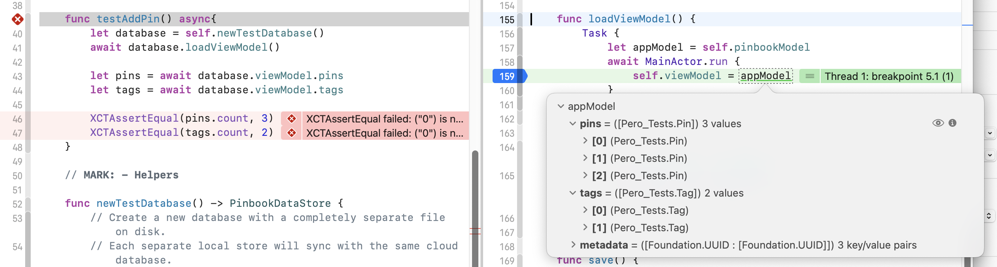
    Async await testing.

    View model values are not populated at the time of assertion because I use main thread dispatcher in my implementation of the loadViewModel function.

    func loadViewModel() {
        Task {
            let appModel = self.pinbookModel
            await MainActor.run {
                self.viewModel = appModel
            }
        }
    }
    

    Remember await keyword is not blocking and assertion runs before pins and tags are populated.

    I have started to notice the test passing sometimes with await task.value additional line:

    func testAddPin() async {
        let database = self.newTestDatabase()
    
        let task = Task {
            await database.loadViewModel()
        }
        await task.value
    
        let pins = await database.viewModel.pins
        let tags = await database.viewModel.tags
        XCTAssertEqual(pins.count, 3)
        XCTAssertEqual(tags.count, 2)
    }
    

    Above passing for me only sometimes, not acceptable. I had to do more changes so the test now passes every time I run it.

    func testAddPin() {
        let database = self.newTestDatabase()
    
        let task = Task {
            await database.loadViewModel()
        }
        Task {
            await task.value
            let pins = await database.viewModel.pins
            let tags = await database.viewModel.tags
            XCTAssertEqual(pins.count, 3)
            XCTAssertEqual(tags.count, 2)
        }
    }
    

    If you need more guidance writing your first async/await project and you not sure how to structure your code. I recommend this sample project from Apple: CloudKit Samples: CKSyncEngine.
    → 7:45 AM, Aug 10
  • Hide toolbar command not working

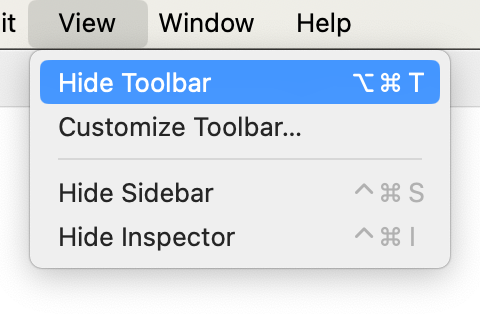
    View > Hide Toolbar command selected in a context me

    I’ve been trying to fix the “Hide Toolbar” command in my SwiftUI macOS project. Hide Toolbar is one of my favourite keyboard shortcuts and I use it regularly to use screen space more effectively. Naturally, I want this macOS feature to work in my app. The keyboard shortcut didn’t work in my project. If you facing the same issue, check these two tips.

    First, assign id to the toolbar view modifier and every child item. Example below.

    .toolbar(id: "editor-toolbar") {
    	ToolbarItem(id: "new-note") {
    		Button {
    			// do something
    		}
    		.help("New note")
    	}
    }
    

    Second, remove Divider() from your toolbar’s view.

    These two tips fix the hide command but also make the toolbar customisable.

    Strangely, activating the command with the mouse was working. With the keyboard shortcut, the menu gets highlighted but it didn’t work. Searching the web for a solution gave me no results. I want to share this with the internet because there has to be someone facing similar roadblocks.

    I have found a a working code example in one of my other projects. At that project I experienced a a different issue, this time it greyed out the “Customize Toolbar…” command. By finding a solution for the command, I have fixed the hide command as well.

    This post wouldn’t be possible without the work which went into LinkEdit. It describes one of the many features and improvements included in recent 1.3 major update.

    → 6:56 AM, Aug 10
  • Alert buttons

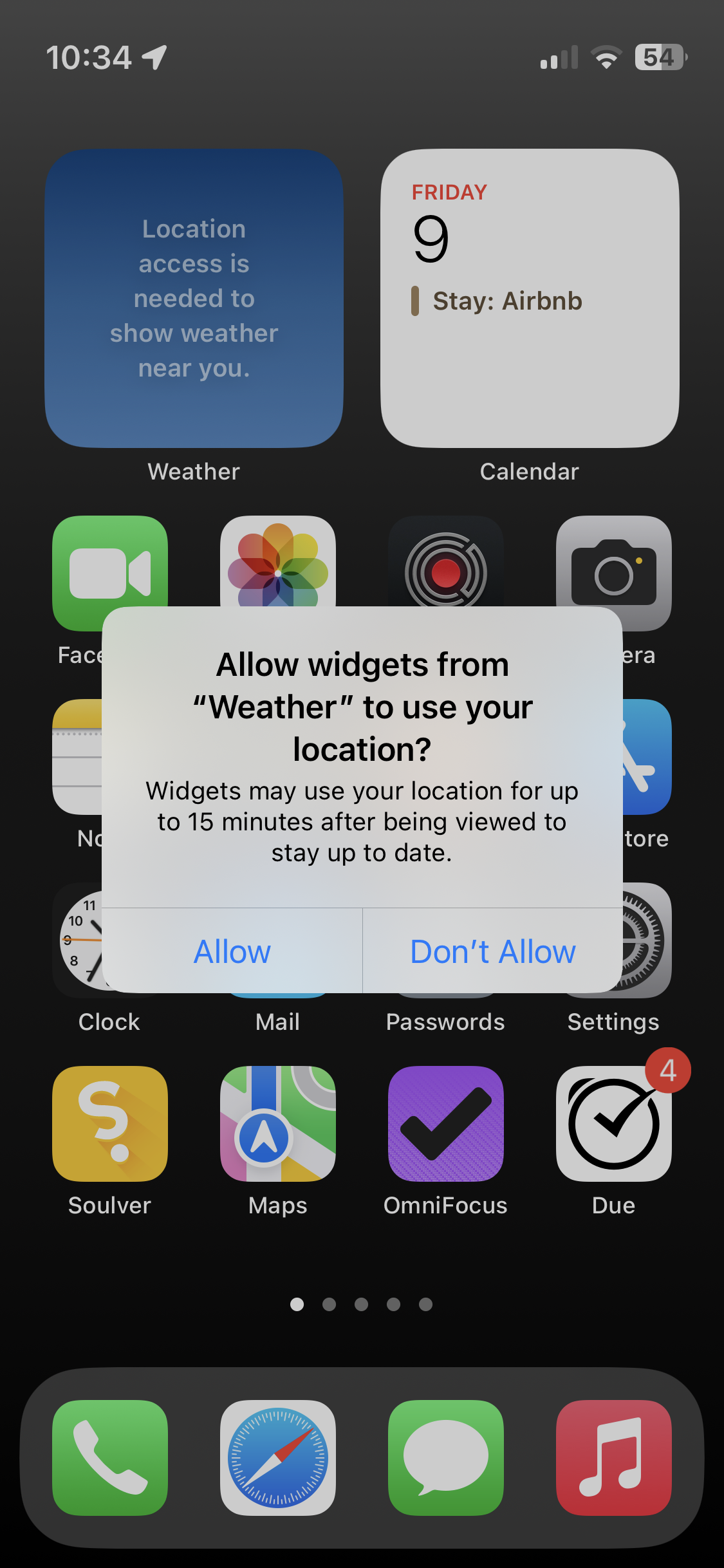
    Example of iOS alert not following the HIG. Traditionally in OS X, later iOS and macOS, the cancel button is on the left and the okay button is on the right.

    → 10:04 AM, Aug 9
  • Help command in SwiftUI Mac project

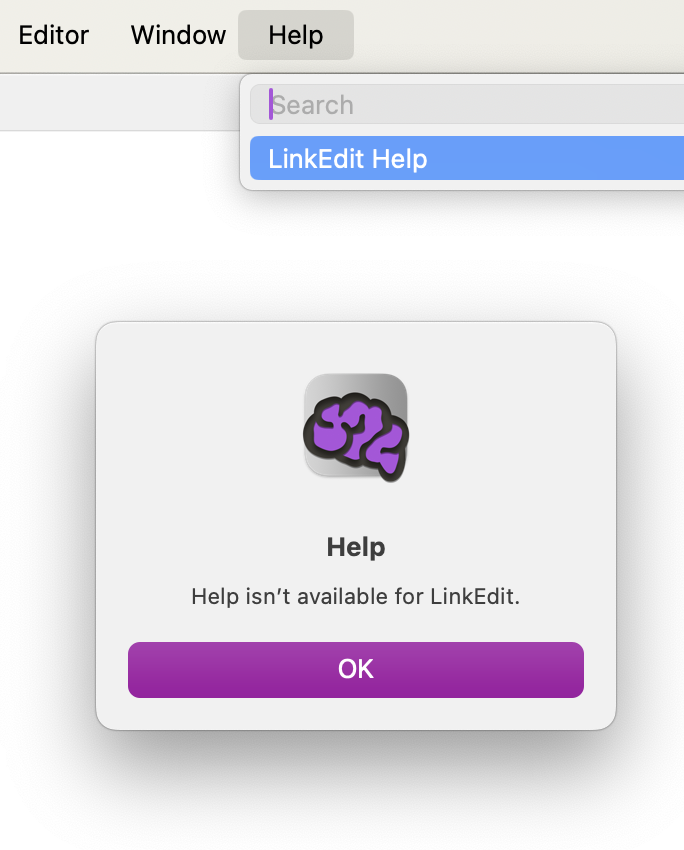
    Default SwiftUI on the Mac project includes the default Help command. But there’s a little problem. It also adds the default help menu. I recommend implementing the menu or at least removing it from your app. Otherwise, it gives the impression of an unfinished app.

    aletrt which says help is not avaiable for LinkEdit, has single OK button

    Luckily it is just a few lines of code and you can link to your website.

    struct HelpMenu: View {
        var body: some View {
            Group {
                Link("Your App Website", destination: URL(
                    string: "[www.your-site.com/your-app/](https://www.your-site.com/your-app/)")!)
                // Place other Help menu items here.
            }
        }
    }
    
    .commands {
        CommandGroup(replacing: .help) {
            HelpMenu()
    	}
    }
    

    Linking to a website is the easiest option. If you want to do better, some Mac apps provide documentation in the form of a little book, accessible offline. Find original code and information about help books on the Swift Dev Journal.

    This post wouldn’t be possible without the work which went into LinkEdit. It describes one of the many features and improvements included in recent 1.3 major update.

    → 3:36 PM, Aug 8
  • Mouse and keyboard update

    I’ve come full circle and now I’m back to the MX Vertical, it’s for the first time I am buying the same mouse twice. MX Vertical charges over USB-C, supports Mac through open Bluetooth protocol, just like the Magic Mouse, and it offers unmatched comfort, thanks to its big size and vertical design. Unfortunately, it has a manufacturing flaw.

    In the past years, I’ve been using Logitech MX Vertical until its main button started to click twice. Then I switched to the Apple Magic Mouse provided by my employer and configured it to single-button mode. I grew accustomed to Magic Mouse ergonomics. Unfortunately, there was an annoyance — I had to repair it between my personal and work laptop every day. I didn’t want to buy another Apple Magic Mouse because it has still not been updated to USB-C. Another disadvantage of the Apple mouse is that it’s not ideal for gaming. In games I play, the secondary click is as often used as the main click. Although control click works well on macOS where there are no functions limited only to the secondary click1, video games UI is different. In most video games the secondary click is used as much as the main click.

    I have tried to find a good replacement and chose the Logitech Pro X Superlight 2. My thoughts were that the taller mouse would be more comfortable than the Apple Magic Mouse and also great for occasional2 gaming. In addition, I have purchased an Apple A1243 Wired Aluminium Keyboard which works great with the Logitech PRO X Superlight. The USB 2.0 wireless receiver is compatible with the Apple keyboard and allows me to use the mouse with three Apple laptops: my personal MacBook Rp, my work MacBook Pro and my partner’s MacBook Air. I am using a combination of a wired keyboard and a USB-C Digital AV Multiport Adapter from Apple. The keyboard has two additional USB 2.0 ports, one of which I use for the Logitech wireless receiver. The keyboard has two USB 2.0 ports and works as a USB hub. I didn’t know I would need the second port until I started to feel minor discomfort when using the Logitech Pro X Superlight 2. What I learned quickly is that experience using the gaming mouse in a productivity setting is less comfortable than the smaller Apple Magic Mouse. Surprisingly, I think it has something to do with the ability to use the entire surface as a click area which increases comfort and allows more flexibility for my hand position. Feeling the discomfort motivated me to order the MX Vertical which I’ve been using for the past week and I feel nothing in my right wrist, even during long sessions.


    1. Great macOS apps offer every feature in the Menu Bar which works only with the primary click. ↩︎

    2. I purchased the gaming mouse on July 4th and have not played any video games yet. ↩︎

    → 2:39 PM, Aug 6
  • Working with plain text

    Before the iPhone era, I was intrigued and was actively writing plain text notes in Notational Velocity. There’s something about using a Mac as a natural extension of your thoughts. When iPhone came along my most used third-party app was first Evernote and then Drafts, I still use Drafts, but only as a scratchpad for things I am about to post somewhere. Then Obsidian appeared out of nowhere along with other similar apps like Craft, and Ulysses. A term that describes these apps is Personal Knowledge Manager (PKM). I also should mention a modern take on Notational Velocity which is in the later stages of development. Lately Obsidian was the app I used the most. But I never could tolerate the iOS client and the Mac version is becoming increasingly worse and bloated. Obsidian is a wonderful concept but it remains an Electron application. It would never feel like BBEdit and MarsEdit.

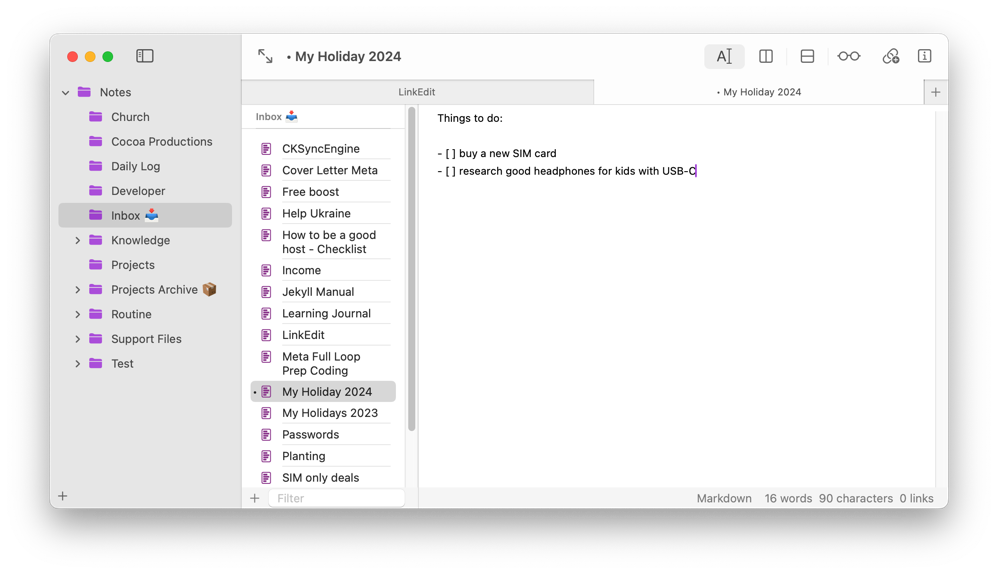
    I began part-time work on LinkEdit on 18 May 2021. Yesterday I have shipped version 1.3. I’ve been using 1.3 for the past month and for me, it is good enough now so I don’t need to open Obsidian any more. Finally, the app offers latency-free performance and I trust it with my thoughts. The editor is still very much basic and far from other Markdown editors. And it is still a Mac-only app. But this version is something I am proud of very much. I hope it can be a foundation and if more people find it useful, I will continue to work on it. Please try LinkEdit and tell me what you think.

    Linkedit 1.3 with window tabs and new toolbar.

    I am also glad that I was able to figure out how to bring window tabs back and will be sharing SwiftUI things I learned here with “developer” tagged posts.

    → 8:35 AM, Jul 29
  • Relay FM 10 year anniversary at Hackney Empire, London.

    → 8:12 PM, Jul 27
  • New keyboard, I’m excited. ⌨️

    → 8:24 PM, Jul 9
  • Mobile data statistic

    I use a limited data plan with a weekly allowance. I developed a habit of checking the Settings app and keeping track of the usage, switching off the worst offenders.

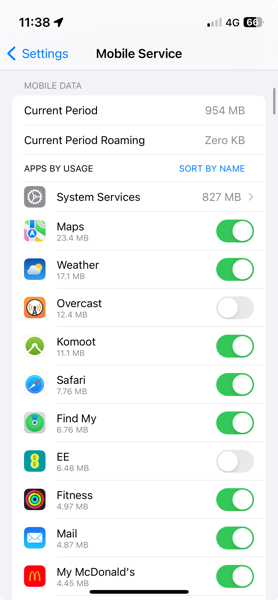
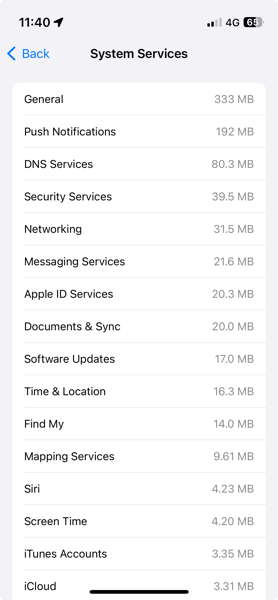
    I reset statistics on June 28th (Friday). I used all my data through the following weekend. On Monday morning I received a text that I have no data left. Today on Wednesday I checked the stats and found higher than expected numbers. On the second screenshot below you can see the System Services page with 192 MB allocated to the “Push Notifications” alone, and 333 MB for the “General”, whatever it means.

    settings mobilde service page with system services using 827 MB and current period set to 954 MB of data
    System Services page with 192 MB allocated to Push Notifications alone

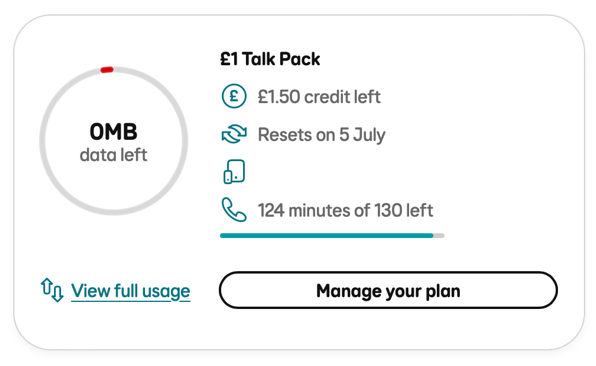
    I reset the statics this afternoon. Then I waited for more than four hours and checked the usage. I know I have used zero mobile data because my plan doesn’t renew until July 5.

    0 MB data left on my plan

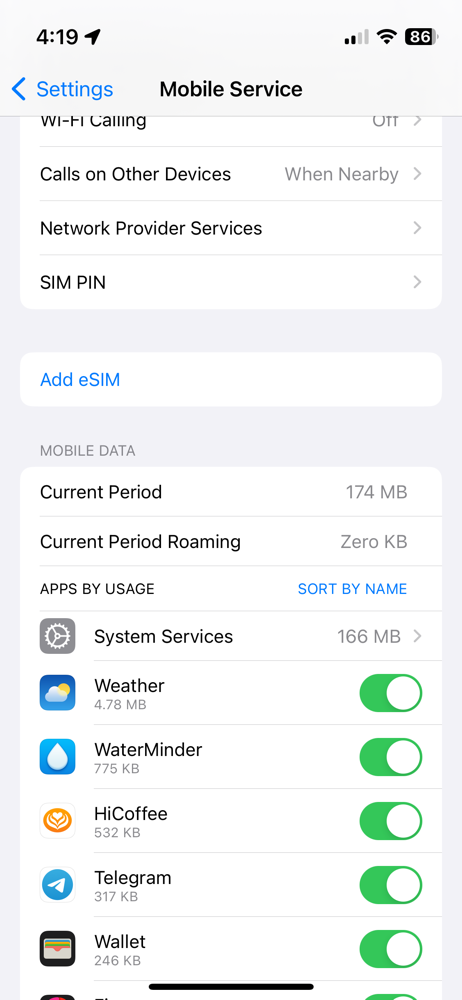
    Below is usage in the evening, 4:19 PM. iOS told me it used 174 MB of data. This has to be wrong. Another possibility is that my service provider (EE, UK) doesn’t block all the traffic. But then I would receive push notifications, and I don’t. Effectively I experience Airplane mode.

    Mobile service usage 174 MB, time 4:19 pm
    → 5:00 PM, Jul 3
  • The only way to find the volumetric size of Nespresso cups, is by taking a picture in my office.

    opened container with circular nespresso capsules
    • 25 ml / 0.85 fl o
    • 40 ml / 1.35 fl o
    • 110 ml / 3.75 fl o

    The size of Nespresso coffee cups pictured above. Here you go internet, you are welcome.

    → 11:13 AM, Jul 1
← Newer Posts Page 15 of 37 Older Posts →
  • RSS
  • JSON Feed