What did I use
- Apple computer with M1 or newer CPU
- UTM 4.7.5 (18)
- Windows 11 ARM ISO from Microsoft (CrystalFetch build was crashing during installation), refer to UTM documentation
- The Settlers® 4: Gold Edition from gog.com (often on discount, my version cost me just less than £3)
What doesn’t work
There’s an issue with the main game menu scaling; the game is hard-coded to run in full screen, but the UI elements do not align with the pointer position. This is not a blocker and just a quality-of-life issue; after I was able to get through the menu, the game itself had correct click areas.
What do we need to do
- Install Windows; we should not see any errors during installation.
- Windows 11 finally added a setting to use macOS-like “Natural Scrolling”; I recommend enabling it straight away.
- Install UTM Guest Tools; test that copy and paste works; I used Notepad.exe. Note: use
control + Vin Windows to paste. We might need to restart the VM for UTM Guest Tools to start working. - Unmount Windows ISO and Guest Tools; this will save us from errors after we eventually need to restart the VM
- In the Windows VM download the GOG Galaxy client from gog.com, log in and install the game.
At this point, we should see the following error, which curiously also happens in CrossOver and PortingKit.
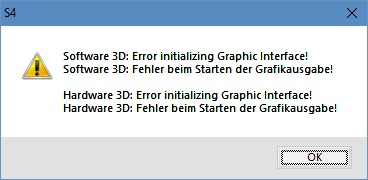
Image taken from GitHub
You might attempt a patch from the repo above; it didn’t fix the issue for me. Thanks to zocker-160 from Germany, for saving my holiday, there’s another patch which solves the issue, and this is the only patch we need.
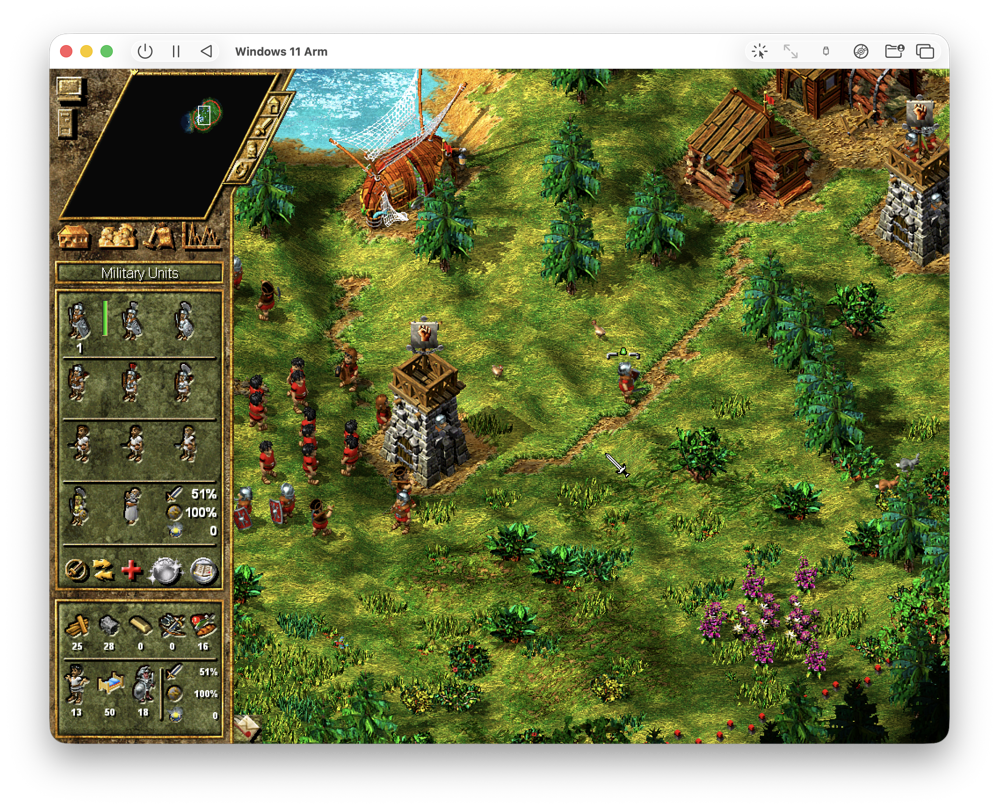
The game will launch now, and we should see pre-rendered intro videos running with no reasonable frame drops. I tested this on a stock MacBook Air M3. Now we need to get through the menu and I realised that the game is unplayable; I could hear the music but the game appears to be frozen. Windows even detected a hang; this is helpful, but it only worked once. Future hangs required force quitting the executable manually.1
This is where Windows “Compatibility” options helped me; there are multiple flags and options Redmond gives us. Eventually I found what’s was working for me; I am not claiming this is the minimum change we need to make; I likely enabled more than was needed.
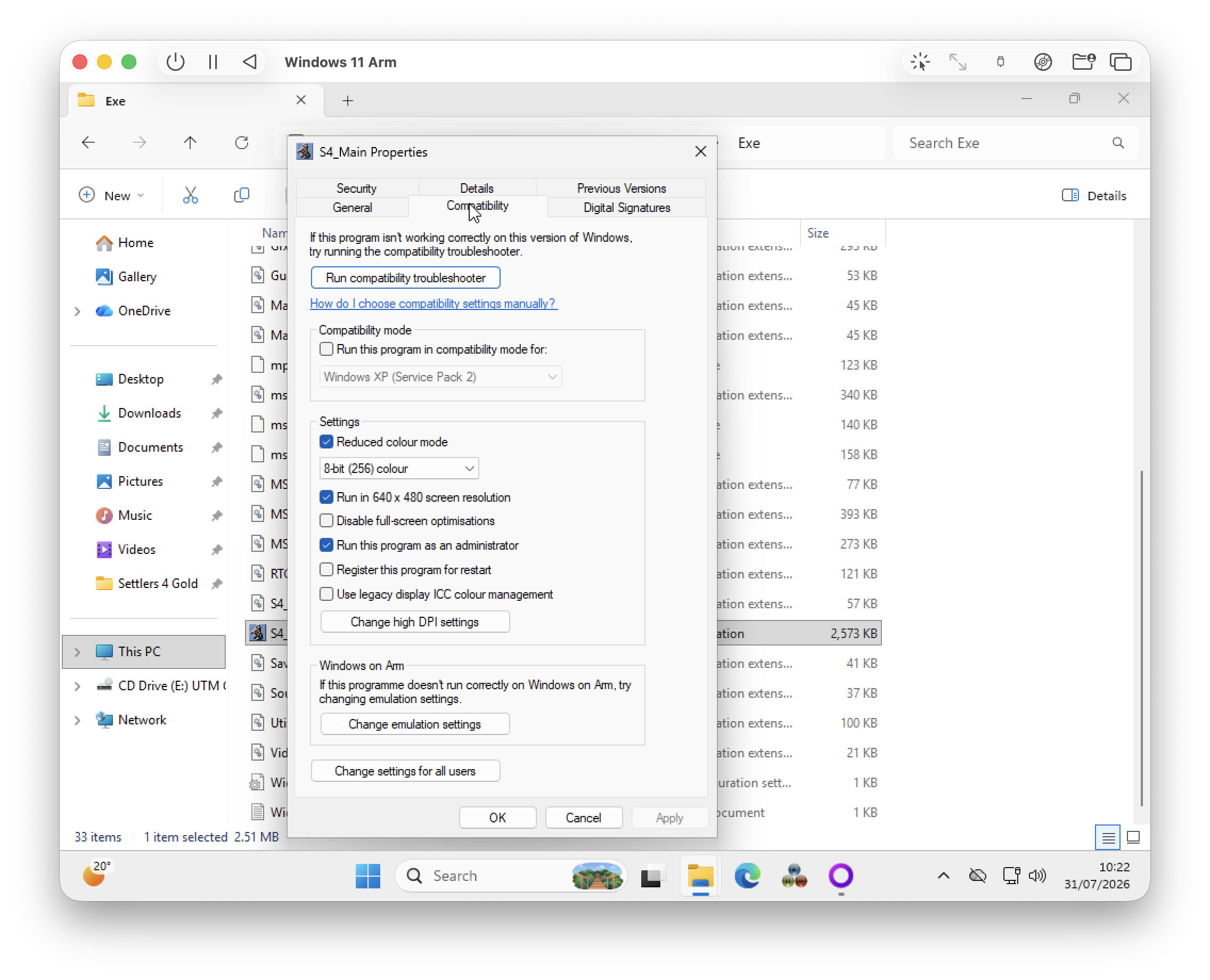
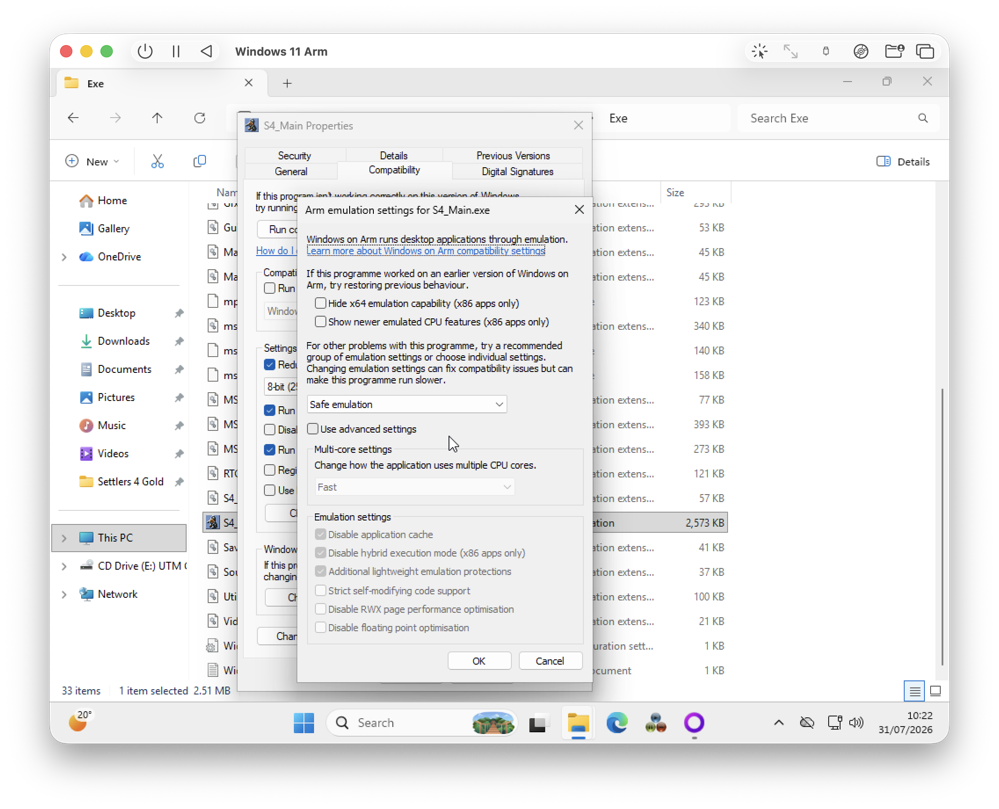
Click “Apply”, twice,2 then the game is running and playable. 🎉
What did I learn
You might want to play with resolution settings, don’t!** Keep them as default 1024px by 768px. It led to an issue where I couldn’t see any of the UI, couldn’t revert the settings and had to wipe the GOG installation and reapply the patch.
To fix the menu issue, I attempted to force the exe to run in a window using DxWnd, it does fix the menu, but it doesn’t work with Windows emulation unfortunately. And it has a pretty bad UI, first thing we have to do to intercept an .exe launch is to right-click on an empty space.
I have experimented with Windows XP builds, which I do not recommend, but if you need to, this ISO from the Internet Archive already has a pre-installed build, so there’s no waiting. However, we can’t access the internet on Windows XP, and UTM Guest Tools do not work either. I ended up creating my own ISO image using macOS Disk Utility and a single Terminal command, thanks to this article. Disk Utility > New Image > Image from Folder. Choose the “DVD/CD master” option. Then run hdiutil makehybrid -iso -joliet -o FILE.iso FILE.dvd.cdr.
I also attempted PortingKit and even the CrossOver free trial; I attempted both patches mentioned above to manually override the files inside the Exe folder, but nothing worked.
UTM has many options for GPU emulations; none of the options I tried helped me to work around the 3D issue.
Inside the VM, I have been experimenting with some emulation which has Voodoo in its name; this fixes the 3D error, but performance is unplayable. Essentially, it forwards all GPU calls to the CPU, and unsurprisingly it works but with FPS below 1.
-
The last time I used Windows was XP,
control + option + deleteno longer shows the Task Manager. Usecontrol + shift + esc; I have not tested this yet, thanks for CCleaner the info. ↩︎ -
With the exception of iTunes, I have never seen an “Apply” button in any of the settings windows on OS X. I hope Windows 12 can copy this UX too, and I am optimistic. ↩︎